Thank you for choosing our plugin "Hide Variants Out of Stock". Whether you want to install the full version of the plugin directly or a 30-day trial version of the plugin, you can follow the instructions below through the installation process.
1. System Requirements
To install "Hide Variants Out of Stock", you need at least the following system configuration:
- PHP version 5.6 or higher
- Ioncube encoder compatible with your PHP version
- Shopware 5.0 (We recommend Shopware 5.3 and above)
2. Installation
You can install and configure "Hide Variants Out of Stock" completely via the Shopware Plugin Manager. Please first log in as an administrator in the Shopware backend and open the Plugin Manager via Settings → Plugin Manager.
2.1 Installation of the Trial Version
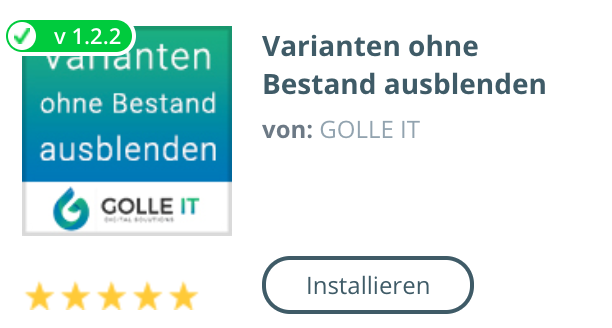
If you want to install the trial version of the plugin and have not already purchased it via the Community Store, simply enter "Hide Variants Out of Stock" in the search box at the top left. In the search results, select "Hide Variants Out of Stock" by GOLLE IT:
2.2 Installation directly from "My Purchases"
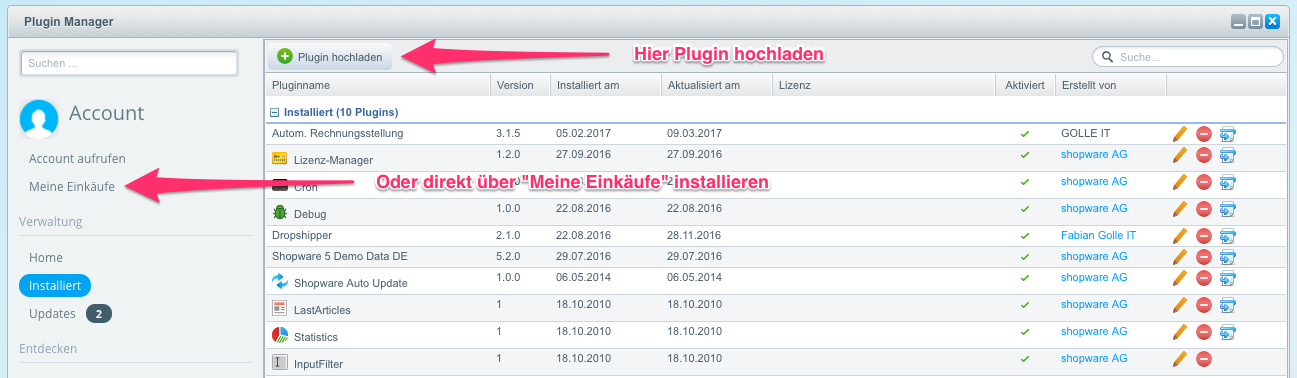
If you have already purchased the plugin in the Shopware Community Store, you can import the plugin and associated license directly via "My Purchases".
2.3 Installation via zip Upload
If you have downloaded the plugin in a specific version directly from your Shopware account, you can also upload the plugin directly via the Plugin Manager.
To do this, please select "Upload Plugin" and select the zip file on your local computer.
During installation, you will be asked whether you want to clear the cache. Answer this question with "Yes".
Please do not forget to import the plugin license in the Plugin Manager. You can find out how to do this here.
In the subsequent settings dialog, you can adjust the settings of the extension. Select here which components you want to activate. A detailed description can be found under Configuration.
3. After Installation
After successful installation, the plugin will ask you to clear all caches so that the plugin's changes can be applied. Please confirm this message.
Do not forget to activate the plugin as well if you want to use it directly.
4. Configuration
Detailed information on configuring the plugin can be found under Configuration.
Related Articles
Related articles appear here based on the keywords you select. Click to edit the macro and add or change keywords.
| Related Processes |
|---|