| Option | Description |
|---|
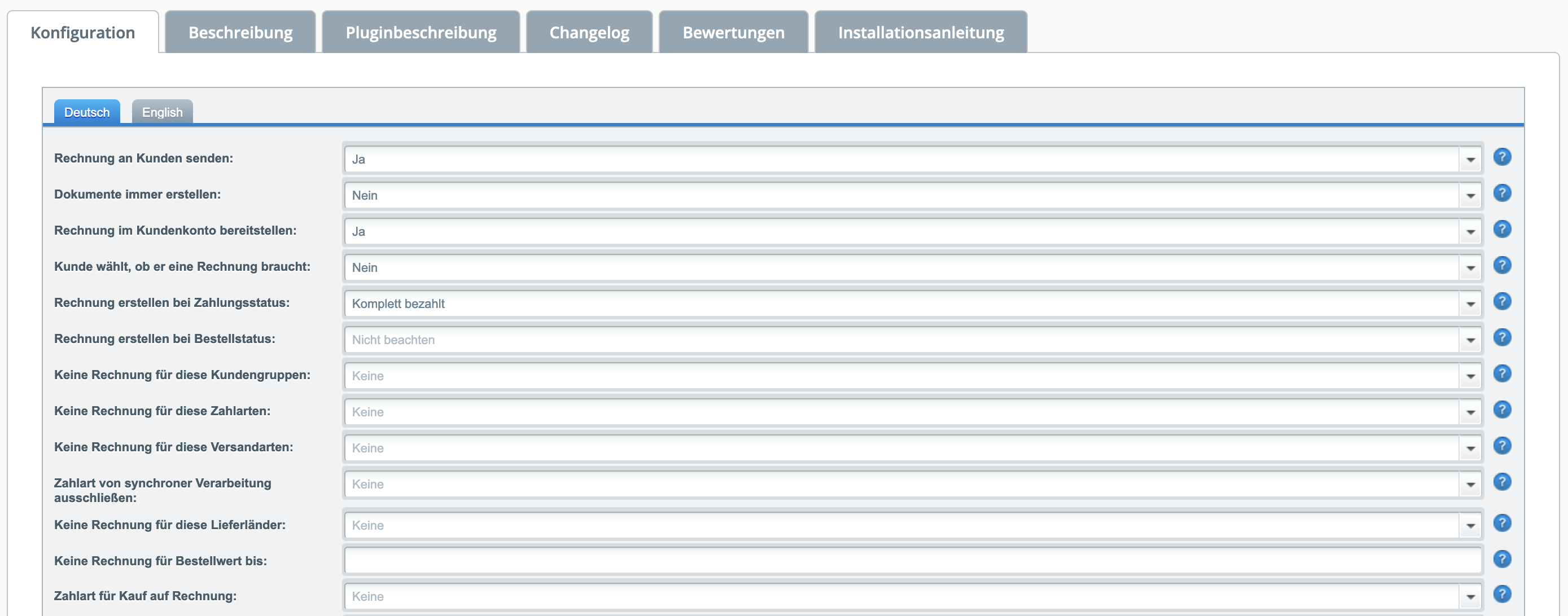
Send invoice to customers | If this field is set to "Yes", the customer will receive the invoice by email. For this option to work without errors, the "Always create documents" option must be disabled.
|
| Always create document | With this option you can have documents created for internal use even if you set the "Send invoice to customers" option to "No". |
| Make invoice available in customer account | Enable this option if you also want to make the customer invoice available directly via the customer account. |
| Customer chooses whether they need an invoice | If active, the customer can decide during the checkout process whether the invoice should be sent to them. |
| Create invoice at payment status | Select a payment status here at which the invoice (and packing slip) should be generated and sent. |
Create invoice at order status | Select an order status here at which the invoice (and packing slip) should be generated and sent. As soon as the desired payment and order status are reached, an invoice (and packing slip) will be created and sent. |
| No invoice for these customer groups | Select customer groups here that should not receive an invoice. For example, if you want only business customers to receive an invoice, select all other customer groups here except "Dealers". |
| No invoice for these payment methods | Select the payment methods here that you want to exclude from invoice sending. |
| No invoice for these shipping methods | Excludes the specified shipping methods. No invoice will be generated for orders with these shipping methods. All conditions must always apply simultaneously. |
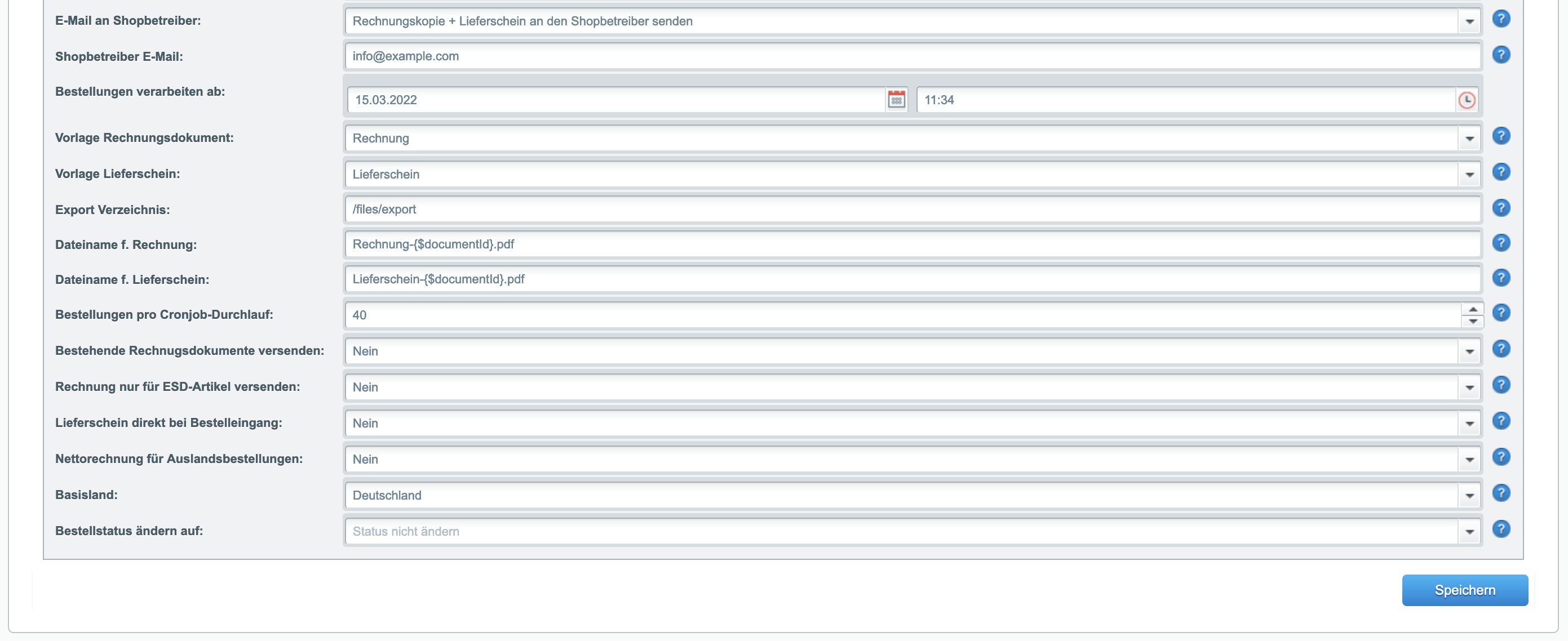
| Email to shop owner | Select here which documents should be sent to the shop owner. |
| Exclude payment methods from synchronous processing | Excludes the specified payment methods from synchronous processing. Orders with this payment method will then only be processed via cron job. Useful for PayPal invoice purchase, etc. |
| No invoice for these delivery countries | Excludes the specified delivery countries. No invoice will be generated for orders from these countries. All conditions must always apply simultaneously. |
| No invoice for order value from | Excludes orders with an order value from the specified amount. If nothing is specified, this function is disabled. |
| No invoice for order value up to | Excludes orders with an order value up to the specified amount. If nothing is specified, this function is disabled. |
| Payment method for purchase on account | If you select a payment method here, the invoice for orders with this payment method will be sent immediately after order completion. |
| Shop owner email | The invoice copy and packing slip will be sent to this email address. Separate multiple email addresses with a comma. |
| Process orders from | Orders received after this date will be automatically processed by the cron job.
So that not all old customers automatically receive an invoice after installation, the installation date is set by default. |
| Invoice document template | If necessary, select a different invoice template for automatic sending here. You can customize the templates in the . |
| Packing slip template | If necessary, select a different packing slip template for automatic sending here. You can customize the templates in the . |
| Export directory | Documents will be exported to this directory at the click of a button. Please note that the directory must exist & the web server must have appropriate write permissions ("chmod 0777"). |
| File name for invoice | Enter the file name for the PDF invoice here. The available variables can be found further down on this page. |
| File name for packing slip | Enter the file name for the PDF packing slip here. The available variables can be found further down on this page. |
| Orders per cron job run | Enter the number of orders that should be processed per cron job run. The standard recommendation is approximately 40 orders. By default, the cron job runs every 10 minutes. If you receive more than 200 orders per hour, you can increase the value. Important: The maximum number of orders per run depends on your server performance. |
| Send existing invoice documents | If this option is enabled, existing invoices (e.g. created by other plugins) will also be sent to the customer when the settings configured above (order status, payment status, etc.) are met. Otherwise, the plugin will block sending if an invoice already exists in the order. |
| Create invoice only for ESD items | If active, the plugin will only send the invoice for orders that contain EXCLUSIVELY ESD items. |
| Send packing slip immediately upon order receipt | Sends the packing slip to the shop owner immediately upon order receipt. |
| Net invoice for international orders | If this option is enabled, a net invoice will be created for orders deviating from the "base country" if the customer provides a VAT ID. |
| Base country | If you enable the "Net invoice for international orders" function, you must specify here in which country your shop is located. |
| Change order status to | After the invoice has been generated, the plugin sets the order status to this status. |