If the solutions in the respective troubleshooting articles do not lead to the desired solution, please be sure to follow the following instructions before contacting support:
1. Clear all caches
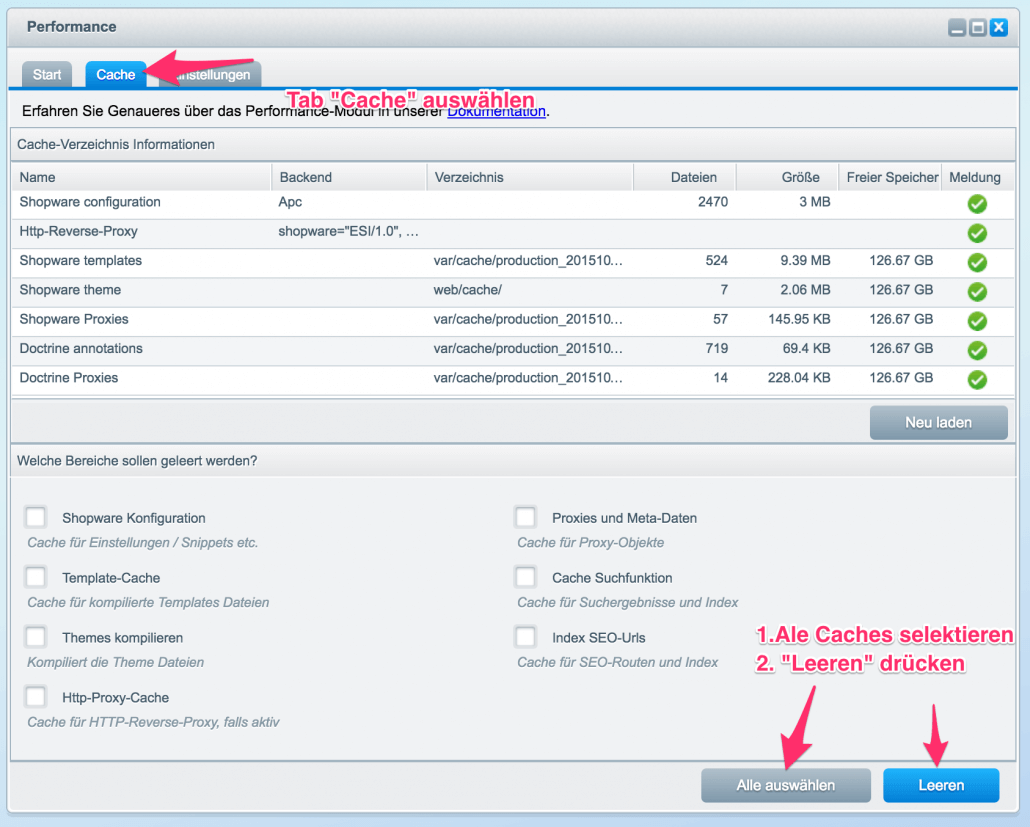
Please first clear all caches. This is not done via the "Clear shop cache" button, but as follows:
Open the Shopware backend.
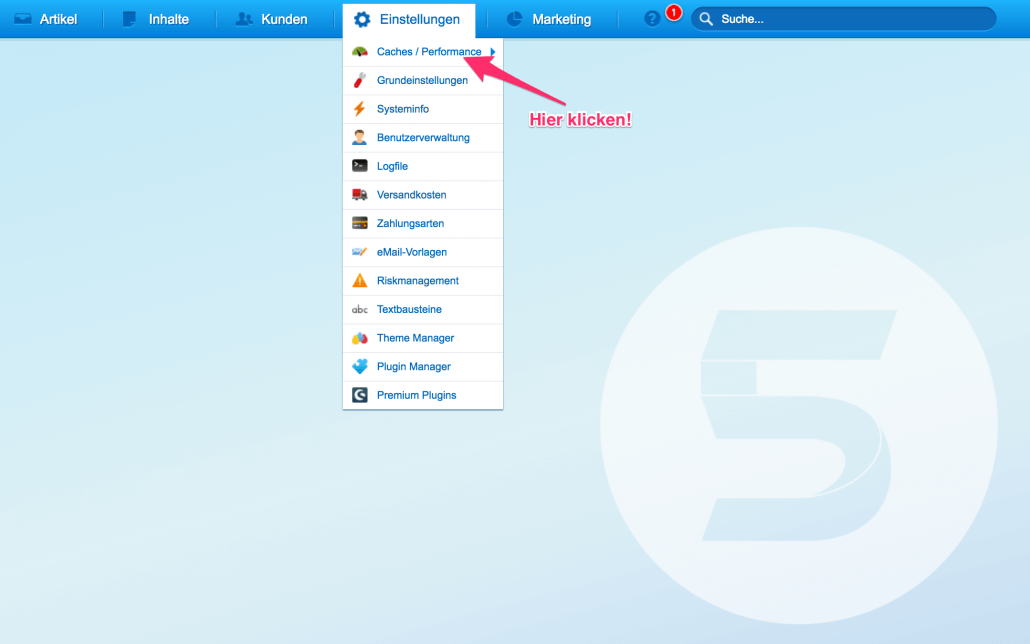
Click on Settings, then directly on Cache / Performance.
Then select "Select all".
Click on "Clear cache".
Now check if the problem persists.
Attention
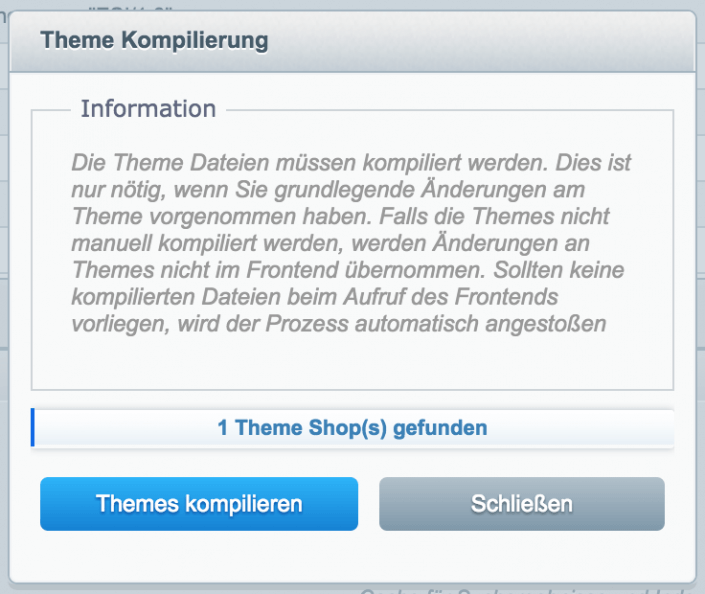
When clearing all caches, all temporary storage is cleared and any previously retained changes take effect immediately. Please briefly check afterwards whether the shop frontend is still functioning properly.
2. Reinstall the plugin
Sometimes not all new settings are installed correctly during the installation or update of the plugin. To ensure that the problem was not caused by an installation error, please reinstall the plugin completely.
Open the Shopware backend.
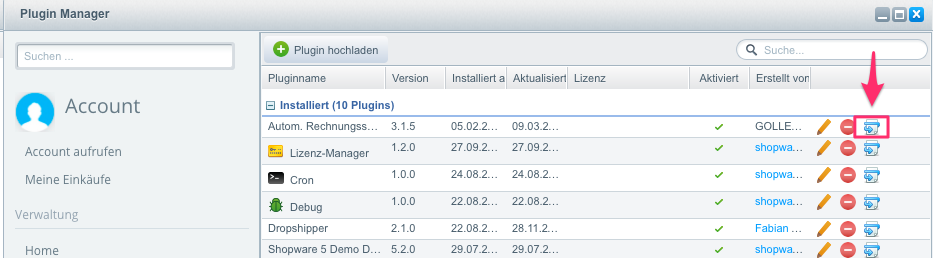
Select Settings → Plugin Manager from the main menu
Click on Installed
Click on Reinstall
Now check if the problem persists.
3. Check for updates
Please check if you have the latest version of the plugin installed.
4. Check the log files
Most errors that prevent the plugin from working properly are logged in the plugin log files. Please connect to the FTP server of your Shopware installation and open the following directory: /var/log/
Depending on the settings and error density of your shop, this directory contains several to hundreds of files. Please search for the newest files with the designation plugin_production_XXX, where XXX stands for the respective date.
Try to reproduce the problem again (change order status, etc.)
Download the latest 3-5 log files
Search the log files for entries with the prefix "FgitsAutoInvoice"
The error messages are in English, but are usually easy to understand.
If you cannot fix the specified error yourself, please contact support. Please attach the log files to your request in any case.